
This guide shows how to add an SSH public key to your BinaryLane account and set it as the default for new Cloud Server installations.
Using a default SSH key can make new server deployments quicker and more convenient, especially if you regularly provision Cloud Servers and want to connect using the same SSH identity each time.
Before you begin:
- You can log in to your BinaryLane account.
- You have your public SSH key ready in OpenSSH
authorized_keysformat.- For guidance on creating an SSH key, see section 'Create an SSH keypair' in the following helpdesk guide: SSH Keys: Connecting with Putty : BinaryLane
- You understand that you should paste your public key only, not your private key.
TABLE OF CONTENTS
- What this does
- Open SSH key management
- Create the SSH key
- Set it as the default for new servers
- Things to know
What this does
When you enable the default SSH key option, that key will be pre-selected for future Cloud Server deployments in your account. This can save time during provisioning and make it easier to connect to newly created servers using your existing SSH setup.
Note
This applies to new Cloud Server installations going forward. It does not automatically add the key to existing servers that have already been deployed.
Open SSH key management
- Log in to your BinaryLane account.
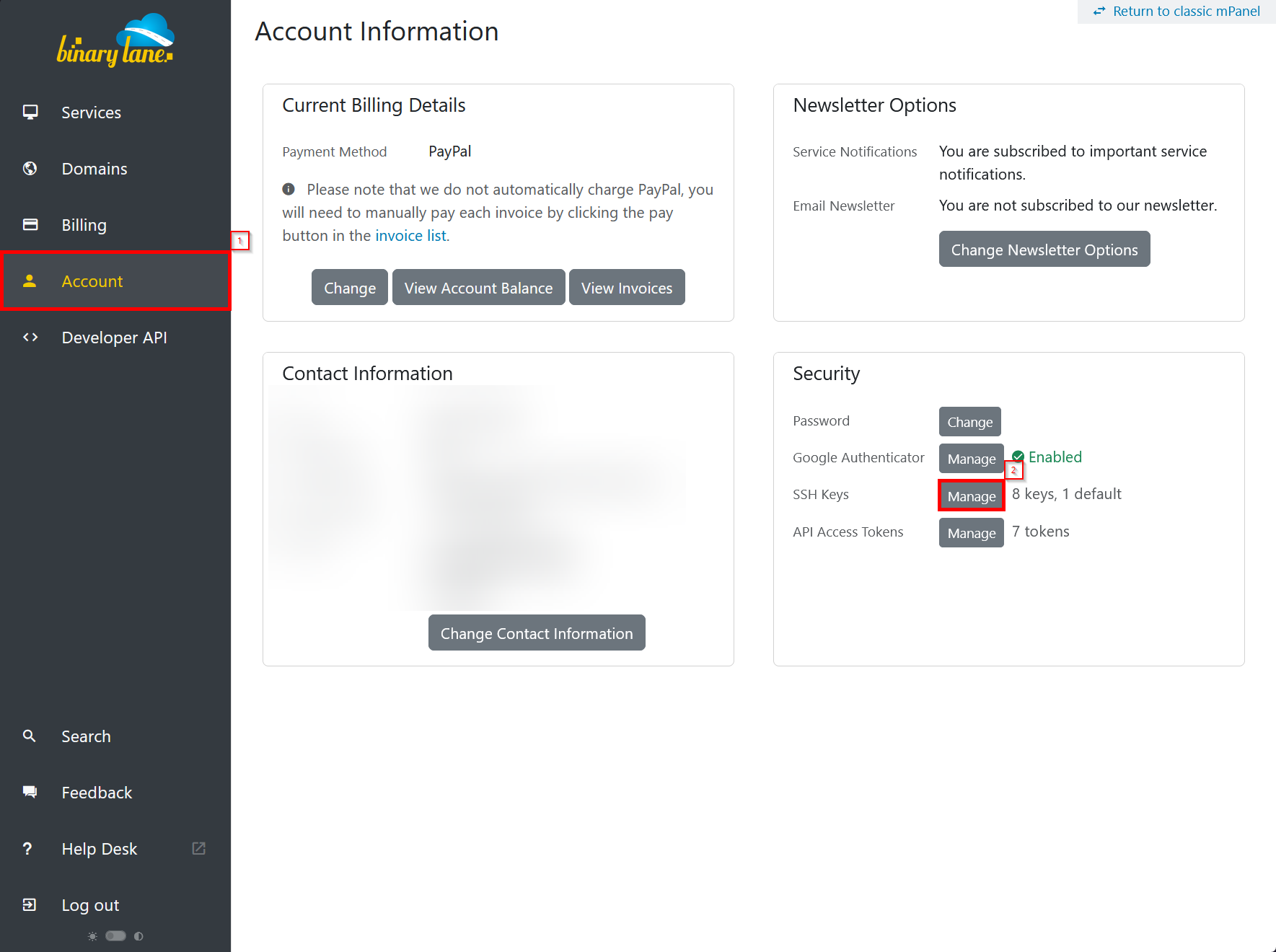
- Click 'Account' in the left-hand pane, then click the 'Manage' button next to SSH Keys in the 'Security' section. Alternatively, click this link: https://home.binarylane.com.au/ssh-keys
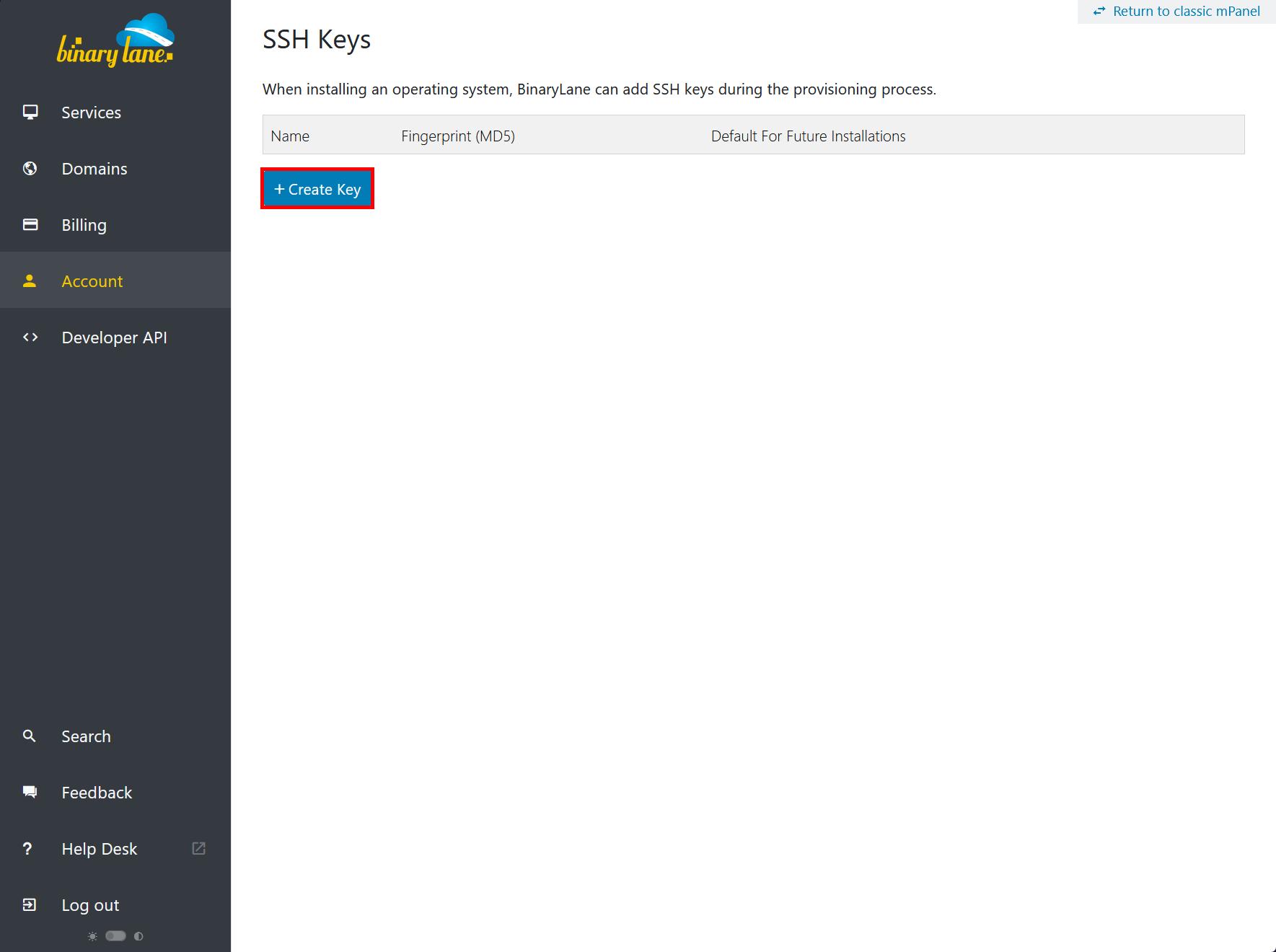
- Click + Create Key.
Create the SSH key
- Enter a name for the key.
- Paste your public key into the Public Key field. The public key must be in standard OpenSSH
authorized_keysformat. Add one key at a time, on a single line (type, key, optional comment): pasting a whole authorized_keys file with several keys is rejected, so add each key separately. For example:ssh-ed25519 AAAAC3NzaC1lZDI1NTE5AAAA... yourname@computer
If you're unsure on how to create an SSH key, see section 'Create an SSH keypair' in the following helpdesk guide: SSH Keys: Connecting with Putty : BinaryLaneImportant
Do not paste your private key into this field. Only your public key should be added to mPanel.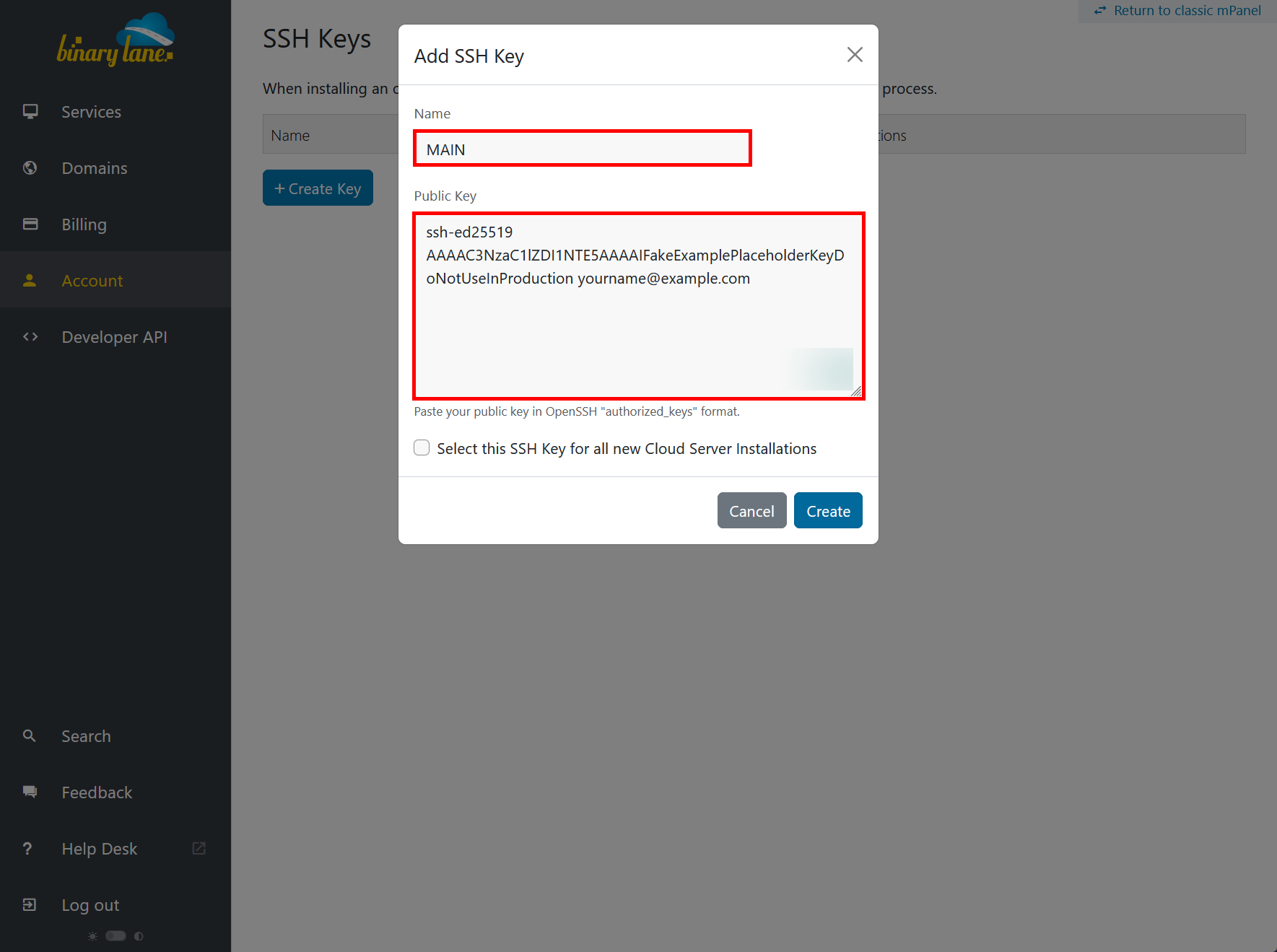
Set it as the default for new servers
- Tick the option:
Select this SSH Key for all new Cloud Server Installations - Click Create to save the key.
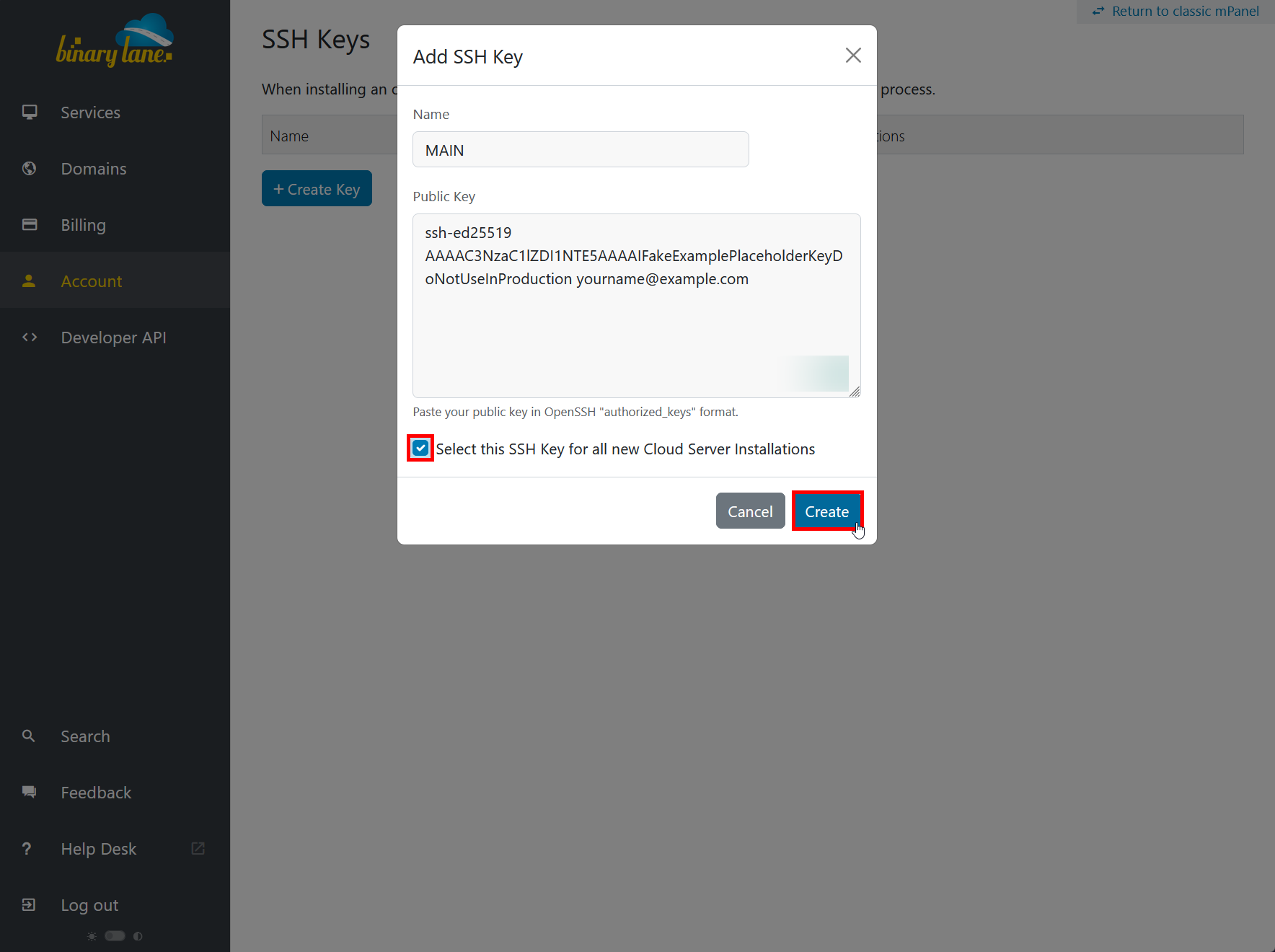
Once saved, this SSH key will be automatically pre-selected when you create a new Cloud Server in future.
Things to know
- You can store multiple SSH keys in your account.
- You can change which key is selected by default later by editing your SSH key choices during deployment or updating your SSH key settings.
- If you reinstall a server and select the key during the rebuild, the key can also be deployed again during that installation.
- If you frequently connect to servers over SSH, using a default key can simplify first access and avoid relying on password-based login.
If you need help generating an SSH key or connecting to your server afterwards, see also:
If you need assistance, submit a ticket.