
Rebuild an existing server to start again with a fresh operating-system installation. You can reinstall the same operating system or choose a different one. This replaces the installation; it is not an in-place upgrade that preserves your applications and files.
TABLE OF CONTENTS
- Before you rebuild
- Reinstall the same operating system
- Change to a different operating system
- Check the rebuilt server
- Use an existing backup or another server's contents
Back up before rebuilding
Rebuilding permanently deletes the data on the server's disks and takes the server offline during installation. Before continuing, create a backup of this server or confirm that you already have a suitable backup of the data you need.
Before you rebuild
Rebuilding the existing server retains its IP address. Do not cancel it and create a replacement expecting the same address.
If you want the operating system and contents from another server rather than a fresh installation, follow Cloning a VPS instead.
Reinstall the same operating system
Use Recovery > Reinstall to start again with a fresh installation of the server's current operating system.
- Sign in to BinaryLane and open the server you want to rebuild.
- Select Recovery, then the Reinstall tab.
- Check Currently Installed and Server Details to confirm the server and operating system. To choose a different OS instead, use the Change Plan steps below.
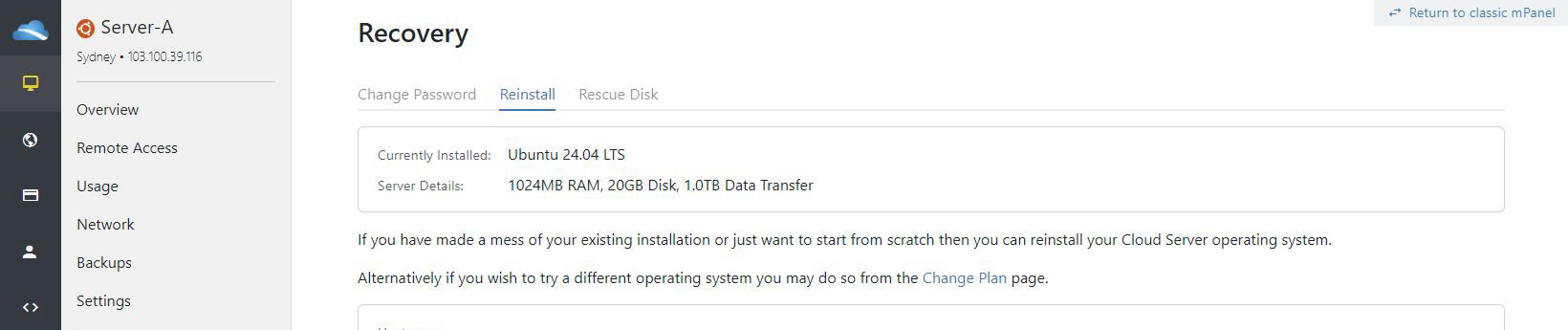
- Review the Hostname, selected SSH Keys where offered, and any Cloud-init User Data. These settings apply to the new installation.
Before you reinstall
Reinstalling permanently deletes the data on the server's disks. Check that your backups contain the files you need before continuing. Your services will be unavailable during the rebuild.
- Select Reinstall only when you are ready to replace the existing installation. Read any confirmation shown before proceeding.
- Wait for the rebuild and startup to finish, then follow Check the rebuilt server.
Change to a different operating system
Use Change Plan to replace the server's current operating system with a fresh installation of another available image. These steps use the current BinaryLane control panel.
- Sign in to BinaryLane and open the server you want to rebuild.
- Select Change Plan.
- Clear Continue using [current operating system], then choose the operating system and version you want to install.
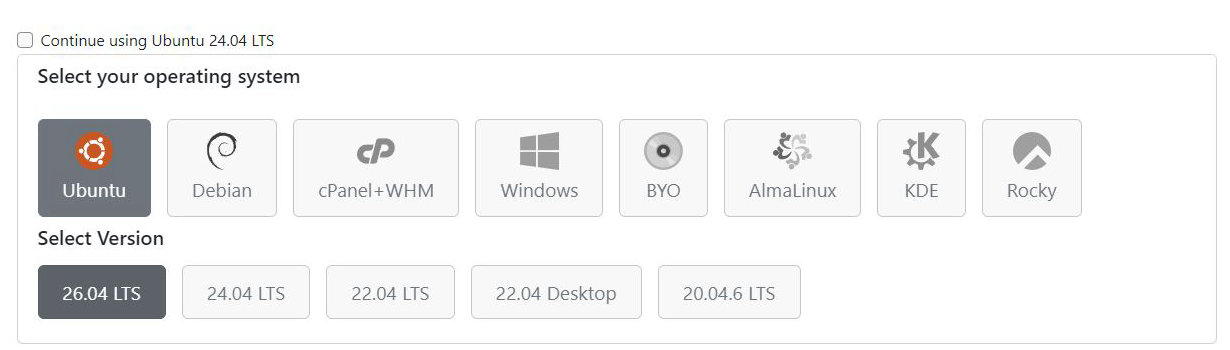
- Review the installation settings, including the hostname, selected SSH keys where offered, and any cloud-init user data. Keep only the settings you intend to apply to the fresh installation.
- If you only want to change the operating system, leave the server resources and IP allocation unchanged. Do not select the existing address under Select IPs to replace. If you select the address marked (primary), mPanel asks you to confirm that the primary IP address will be permanently removed; that address cannot be recovered or reassigned to the server, so clear the selection unless you intend to give it up.
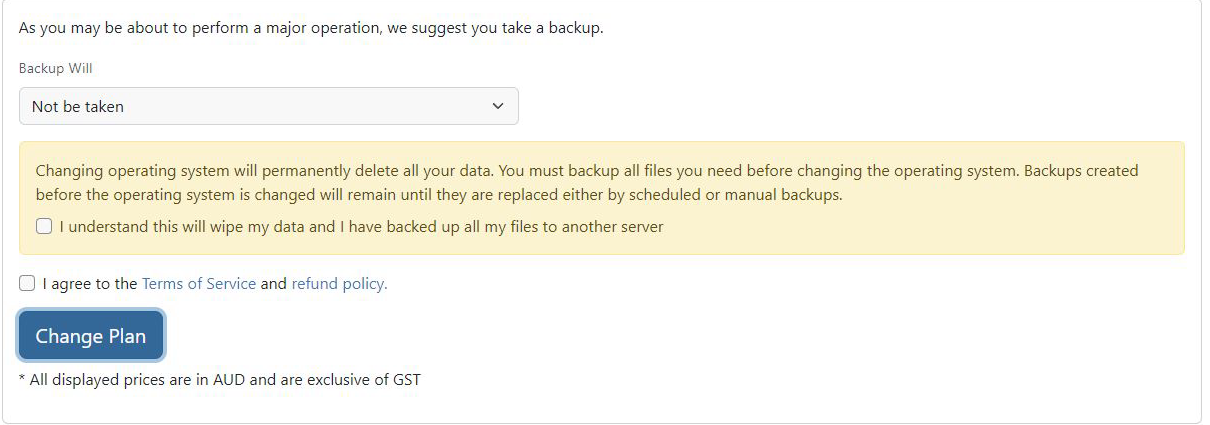
- Review Change Summary and Backup Will. If you still need a backup of this server, choose Create a new Temporary image before proceeding.
Existing backups
Backups created before the operating system is changed remain until replaced by scheduled or manual backups. They do not preserve the current disk contents unless those contents were captured in a backup.
The existing installation will be erased
Check that you selected the correct server and have backed up the data you need. Changing OS permanently deletes the data on its disks and requires a reboot.
- Read and select the data-loss acknowledgement, then read and accept the Terms of Service and refund policy. Select Change Plan.
- Read the Confirm Plan Change dialog. Select Change Plan in that dialog to start the reinstall, or Cancel to return without submitting it.
Check the rebuilt server
Open Overview and wait for installation and startup to finish. Confirm that the IP address is unchanged, then connect using the access method configured for the new installation and check the operating system. Restore your files or configure your applications as needed.
Check the running operating system using the console's OS banner or the operating system's own version information, rather than relying only on the panel's selected image.
Use an existing backup or another server's contents
A fresh OS installation does not copy your old files back automatically. To recover individual files, see Attaching a Backup to your Server. To replace a server's contents with a backup from another server in the same account, follow Cloning a VPS.